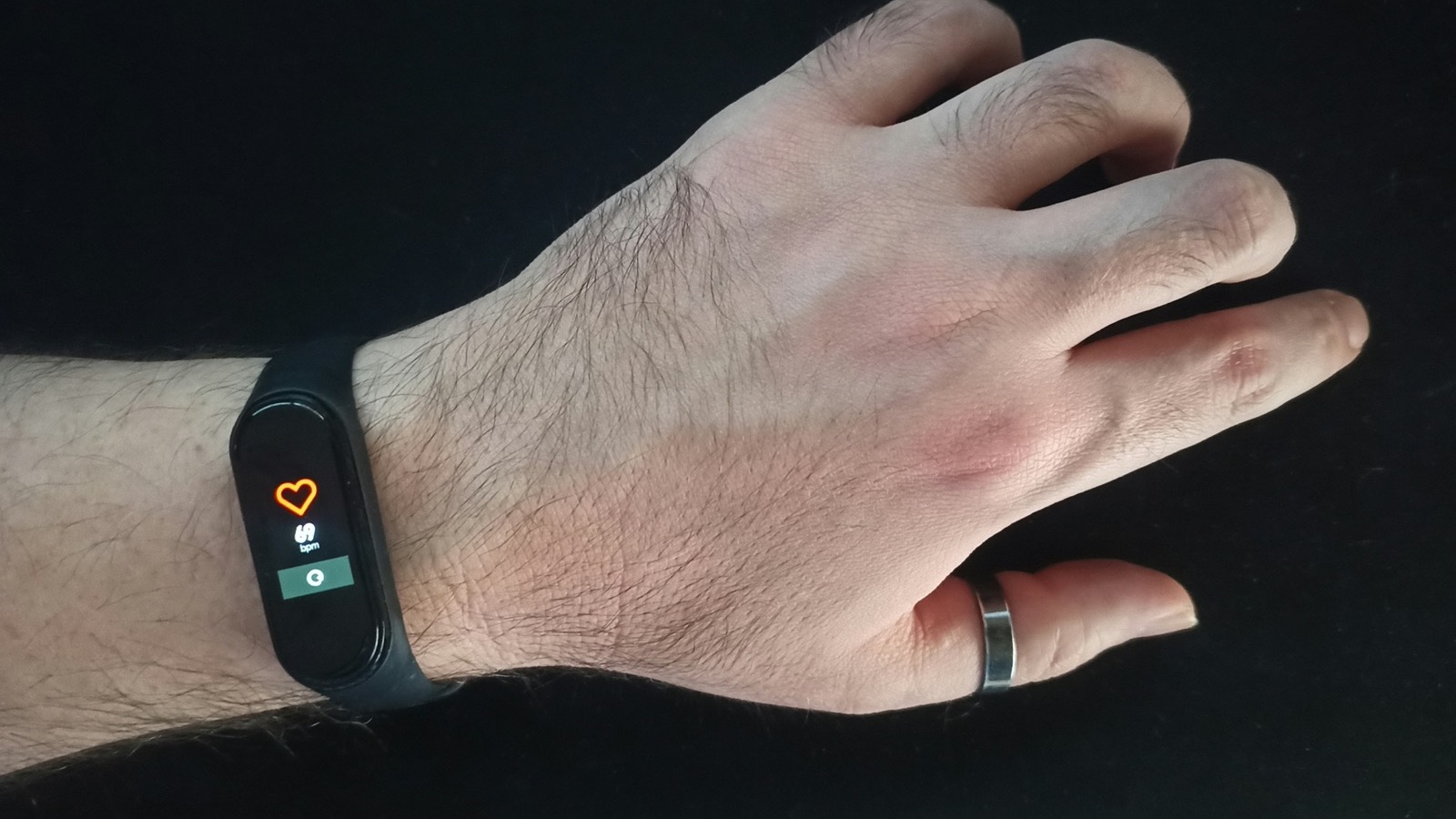
Why Is My Apple Fitness Zone 1 So High?
You open the Fitness app after a walk, and there it is again: a workout spent almost entirely in Zone 1, with a range that seems to swallow half your heart rate. Or maybe you look at your zone settings and Zone 1 spans something like 0–115 bpm, and you think — that can't be right, can it?
It's one of the most common questions I get about Apple Watch, and the answer is usually not "your fitness is bad." It's that Apple calculates zones differently than you expect, your estimated max heart rate is probably a guess, and a couple of sensor quirks are quietly messing with the numbers.
Let me walk you through exactly what's happening, and how to make Zone 1 actually useful.
TL;DR: Apple Watch zones are percentages of your estimated max heart rate — not your heart rate reserve, and not your fitness level. A wide or "high" Zone 1 usually means (1) your estimated max HR is off, (2) you're comparing Apple's max-HR-based zones to a Garmin/Polar heart-rate-reserve system, or (3) you're reading a workout where the sensor was still catching up. You can fix it in Watch app → Workout → Heart Rate Zones → Manual.
YouTube: Related video
First, what Zone 1 even means on Apple Watch
When watchOS 9 introduced heart rate zones, Apple defined five bands as percentages of your maximum heart rate. The defaults look roughly like this:
| Zone | % of max HR | Feels like |
|---|---|---|
| Zone 1 | 0–60% | Very easy — walking, warm-up, recovery |
| Zone 2 | 60–70% | Easy but purposeful — "conversational" pace |
| Zone 3 | 70–80% | Moderate — you're working, breathing audibly |
| Zone 4 | 80–90% | Hard — tempo and threshold work |
| Zone 5 | 90–100% | Very hard — sprints, max efforts |
(Exact boundaries vary slightly between watchOS versions, but this is the shape of it.)
The crucial detail is in the first row: Zone 1 is "anything up to 60% of your max HR." That's a huge, catch-all band — and it's the root of most of the confusion. For someone with an estimated max of 190, Zone 1 runs from zero all the way up to 114 bpm. That's not a typo. Apple deliberately keeps Zone 1 wide because it's the "easy" bucket.
So if your Zone 1 range looks suspiciously high or wide, the first thing to know is: that's by design. The second thing to know is why it might be wrong for you specifically.
Reason 1: Your estimated max heart rate is probably a guess
Here's the quiet secret of every watch zone system: it's only as good as the max heart rate number it's built on. Apple estimates your max HR from your age and health data, starting from the classic "220 minus your age" formula — and then, importantly, it tries to refine that estimate using your recorded workouts.
But here's the catch: the refinement only works if you record hard workouts. If you mostly do easy walks and the occasional yoga session, Apple has almost no high-intensity data to work with, so your estimated max HR stays a generic age-based guess. And for a huge number of people, that guess is wrong:
- If your real max HR is higher than the estimate (common in fitter people, especially under ~40), every zone boundary shifts down. Zone 1 will look "high" relative to your actual effort — your easy walks might even show Zone 2 or 3, and your Zone 1 band will seem weirdly generous.
- If your real max HR is lower than the estimate, zones shift the other way, and you'll feel like you're dying in "Zone 3."
How do you check what Apple thinks your max is? Open the Health app → Heart → look at your cardio fitness (VO₂ max) estimate and your recorded max heart rate from recent workouts. Compare your actual highest heart rate from a hard effort to the age formula. If they're far apart, your zones are off.
Reason 2: Apple uses % of max HR — Garmin and Polar use heart rate reserve
This is the one that causes the most head-scratching, especially for people who switched from Garmin. Those watches calculate zones using heart rate reserve (HRR) — the gap between your resting heart rate and your max heart rate — which makes zones personal to your fitness level.
Apple, by default, does not do this. It uses plain percentages of max HR, which completely ignores your resting heart rate.
Here's why that matters: imagine two people with the same max HR of 190. One has a resting HR of 40 (very fit), the other 75 (untrained or overtrained). On a Garmin, their Zone 1s would be totally different — because the fit person's reserve is much larger. On an Apple Watch, they get the identical Zone 1 (0–114 bpm), because Apple only looks at the max.
So if your Apple Zone 1 seems absurdly high or wide compared to what you're used to — you're not imagining it. You're looking at two different zone philosophies. Apple's version is simpler and more universal; it's just not personalized to your resting heart rate. (Garmin users sometimes read this as "Apple zones are broken." They're not broken — they're a different model.)
Reason 3: The wrist sensor lags at the start of a workout
There's a much more mundane explanation for "I spent 40 minutes in Zone 1": the optical heart rate sensor needs a couple of minutes to lock onto your actual heart rate, especially when you go from sitting to moving.
At the start of a walk, your watch often reads a low, lagging heart rate for the first few minutes — which registers as Zone 1 even if you're already breathing noticeably. The same thing happens when you change pace suddenly mid-workout. The result: an easy-looking zone distribution that doesn't match how the workout actually felt.
This isn't a defect in your watch, and it's not a fitness judgment. It's the physics of measuring pulse through skin with light. The fix is simple: give the sensor a minute or two to settle, and if you're using a workout type that keeps your wrist still (like cycling), consider a chest strap for serious zone work.
Reason 4: Your "Zone 1" workout might just be... easy
Let me be honest about the least exciting possibility: a walk genuinely is Zone 1 for most people. That's what Zone 1 is for. It's the recovery and warm-up band — it's supposed to feel easy.
But if you're seeing this pattern, it's worth asking what you're trying to get from the workout:
- Recovery and general health: being in Zone 1 is fine and even ideal. Easy days should be easy.
- Aerobic fitness (Zone 2): if you want your walk to be Zone 2, you need to move at a pace where your heart rate sits at 60–70% of max — for many people that's a brisk, purposeful walk, an incline, or a light jog. A casual stroll will keep you in Zone 1 all day.
- Calorie burn and cardio fitness: your watch's cardio fitness (VO₂ max) estimate improves fastest with sustained efforts at higher intensities — and this is where the walk-only quirk bites.
The walk-only quirk (yes, it's real)
Speaking of walks: Apple's cardio fitness estimate only updates from certain workouts, and outdoor walks are one of them — but here's the frustrating part — the estimate is capped by how hard those workouts get. If your only recorded workouts are gentle walks, your VO₂ max estimate will trend toward the "walking" end of the scale, because that's the only data Apple has. Lots of people see a low cardio fitness number and assume they're unfit, when really their watch just hasn't seen them work hard.
The fix isn't to run a marathon tomorrow. It's to mix in one or two efforts per week that genuinely push you — brisk hills, intervals, a faster-than-comfortable walk — so the watch has real high-intensity data to refine both your VO₂ max estimate and your max heart rate. Give it a few weeks and both your zones and your cardio fitness number will start matching reality.
How to fix your zones (step by step)
You don't have to live with Apple's guesses. Here's the full fix list, easiest first:
- Check your health details. Open the Health app → your profile → make sure age, height, weight, and sex are accurate. The max HR estimate starts from these. (Weight especially — it changes over time.)
- Record a few genuinely hard workouts. Intervals, hill repeats, a tempo run. Apple uses high-intensity sessions to refine its max HR estimate. Don't expect changes overnight — this is a slow, weeks-long correction.
- Set your zones manually. This is the real fix. On your iPhone: Watch app → My Watch → Workout → Heart Rate Zones → tap Manual, then enter the bpm ranges you want. Where do the numbers come from? A field test, a lab test, or a solid estimate (more below).
- Re-test after fitness changes. Your zones aren't permanent. If you've gotten fitter — or you're coming back from a layoff — revisit them every few months.
How to find your real numbers (no lab required)
If you're going to set manual zones, you need two numbers: your max heart rate and (optionally) your resting heart rate.
- Max HR field test: after a proper warm-up, do 3–4 minutes of hard effort (uphill run, hard intervals), take a short recovery, then repeat — pushing as hard as you safely can on the last one. The highest number your watch records is a solid stand-in for your max. (Check with a doctor first if you have any health conditions or are new to hard exercise.)
- Resting HR: check the Health app's average resting heart rate over the last week. It's most reliable first thing in the morning.
- Then choose your philosophy: want Apple-style simple zones? Use % of max. Want Garmin-style personalized zones? Use the Karvonen formula (resting HR + % of reserve) — plenty of calculators online will do it for you.
One more pro move: use the talk test while you train. If you can hold full, comfortable sentences, you're in Zone 2 territory regardless of what the watch says. Over a few weeks, cross-reference what your mouth tells you with what your watch shows, and you'll know your real zone boundaries better than any formula.
The bottom line
A "high" or wide Zone 1 on Apple Fitness is almost never a fitness verdict. It's one of four things: a max HR estimate that's off, Apple's max-HR-based math (vs. Garmin's reserve-based math), a sensor that's still warming up, or a workout that's genuinely easy. All four are understandable, and all four are fixable.
The watch is a tool, not a judge. If its zones don't match how your body actually feels, trust your body — then go fix the settings so the tool agrees with you. And if you want a daily, personalized read on whether you're recovered enough to push those zones at all, Century AI turns your watch's data into a simple health score and recovery score — so you always know whether today is a Zone 1 day, a Zone 2 day, or a rest day.
Century AI helps you understand your body with a daily health score, recovery score, and sleep insights — using the watch you already wear.